Git Go Ahead
The free, no-fluff Git reference for developers. From your very first
git init to advanced branching strategies — everything
you need in one scrollable guide.

what is git?
Git is a free, open-source distributed version control system created by Linus Torvalds in 2005. It tracks changes to files over time so you can recall specific versions later, collaborate with others without overwriting each other's work, and confidently experiment knowing you can always roll back.
Unlike older centralised systems, every developer has a full copy of the entire project history on their local machine — making Git fast, offline-capable, and resilient.
why every developer needs git
- History & accountability — see who changed what, when, and why
- Safe experimentation — branches let you try ideas without breaking working code
- Collaboration — merge contributions from dozens of developers simultaneously
- Disaster recovery — roll back any file or the entire project to a previous state
- Industry standard — required knowledge for virtually every software engineering role
- CI/CD integration — the foundation of every modern automated deployment pipeline
Git vs GitHub vs GitLab
Git is the command-line tool that runs on your machine. GitHub and GitLab are cloud platforms that host Git repositories and add collaboration features (pull requests, issues, CI/CD). You need Git to use them, but Git works perfectly fine without them.
installation & setup
Download and install Git for your operating system. Git is free and available on all major platforms:
first-time configuration
After installing, tell Git who you are. This info is attached to every commit you make:
git config --global user.name "Your Name"
git config --global user.email "you@example.com"
git config --global init.defaultBranch main
create a repository
A repository (repo) is the folder where Git tracks all your project files and history. Navigate to your project directory and run:
git init
This creates a hidden .git folder — Git's database for your project.
Nothing is tracked yet; you decide which files to include.
check what git sees
git status
Your most-used command — shows staged, unstaged, and untracked files
git status -s
Short format — compact overview at a glance
Tip: initialise with a README
On GitHub/GitLab you can tick "Initialise with README" when creating a repo.
Locally, just create the file yourself: echo "# My Project" > README.md
then commit it as your first change.
.gitignore
A .gitignore file tells Git which files and folders to never track.
Create one at the root of your repository before your first commit.
Common things to ignore: compiled binaries, dependency folders, secrets, and OS noise.
example .gitignore
# Dependencies
node_modules/
vendor/

# Build output
dist/
build/
*.o
*.class

# Secrets & environment
.env
.env.local
*.pem
*.key

# OS files
.DS_Store
Thumbs.db

# Editor metadata
.vscode/
.idea/
*.swp
touch .gitignore
Create the file at your project root
git rm --cached <file>
Stop tracking a file you already committed (then add it to .gitignore)
gitignore.io
Visit gitignore.io (or use the GitHub UI) to auto-generate a
.gitignore tailored to your language and tools — Node, Python, Java,
macOS, Windows, and hundreds more.
clone a repository
To work with an existing repository, clone it to get a full local copy — including all branches and history:
Clone from GitHub/GitLab (most common):
git clone https://github.com/username/repository.git
Clone into a specific folder name:
git clone https://github.com/username/repo.git my-folder
Clone from a local path:
git clone /path/to/repository
Shallow clone (faster, last commit only):
git clone --depth 1 https://github.com/username/repo.git
After cloning, the remote is automatically added as origin —
so you can git push and git pull right away.
git's three trees
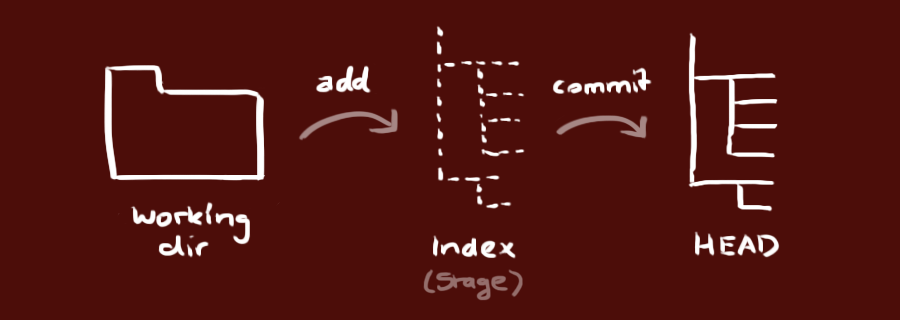
Git manages your code through three conceptual areas. Understanding this model makes every command click into place:
- Working Directory: Your actual project files on disk — where you edit code
- Staging Area (Index): A preparation zone where you assemble the exact changes that will go into your next commit
-
Repository (HEAD): The permanent history of commits — every snapshot you've saved with
git commit
The workflow is: edit in your working directory →
stage with git add →
commit with git commit.
stage & commit
Staging lets you craft precise, logical commits — even if your working directory has multiple unrelated changes in progress.
staging changes
git add <filename>
Stage a specific file
git add .
Stage all changes in the current directory
git add -p
Interactively stage individual hunks — great for keeping commits focused
committing changes
git commit -m "feat: add user authentication"
Commit staged changes with an inline message
git commit --amend
Rewrite the last commit (message or staged content) — only before pushing
Write commits your future self will thank you for
- Explain the why, not just the what — the diff already shows what changed
- Use the imperative mood: "Fix bug" not "Fixed bug"
- Consider the Conventional Commits format:
feat:,fix:,docs:,chore: - Keep the subject line under 72 characters
- Commit early and often — small commits are easier to review and revert
push to remote
Share your committed changes with the world by pushing to a remote repository:
push to a branch
git push origin main
Replace main with your branch name. On first push of a new branch,
use -u to set the upstream:
git push -u origin feature/my-branch
add a remote
If you initialised locally with git init, connect to a remote first:
git remote add origin <repository-url>
Link your local repo to a remote (e.g. GitHub)
git remote -v
Verify your remotes are configured correctly
Before you push
- Pull latest changes first:
git pull --rebase origin main - Run your tests — don't break the shared branch
- Use descriptive branch names:
feature/user-auth,fix/login-crash - Push feature branches early — it backs up your work and enables early feedback
branching
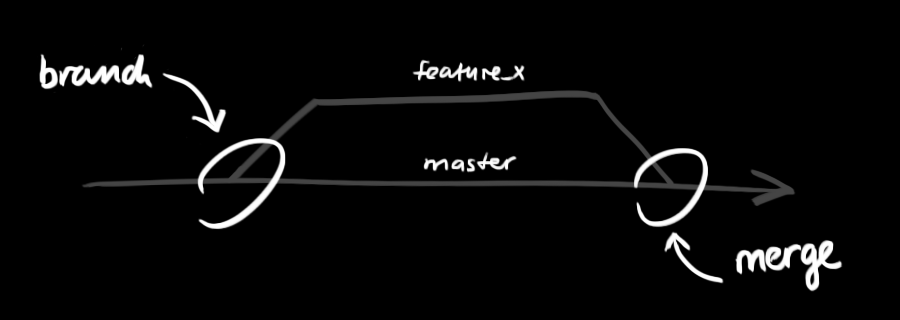
Branches are one of Git's killer features. They let you develop features, fix bugs, and experiment in complete isolation — without touching main until you're ready.
essential branch commands
git switch -c feature/new-feature
Create and switch to a new branch (modern syntax)
git checkout -b feature/new-feature
Older equivalent — also creates and switches
git branch
List all local branches (* marks the current one)
git branch -a
List all branches including remote-tracking branches
git switch main
Switch back to main
git branch -d feature/new-feature
Delete a fully merged branch (safe)
git branch -D feature/new-feature
Force delete — even if unmerged (use with care)
git push origin feature/new-feature
Push branch to remote for backup or code review
Branching best practices
- Name branches clearly:
feature/user-login,bugfix/header-overflow,hotfix/payment-null-check - Keep branches short-lived — big long-running branches are harder to merge
- Regularly sync with
mainto minimise conflicts:git merge main - Delete merged branches to keep your repo tidy
- Protect your
mainbranch — require PRs and passing CI before merging
update & merge
Keep your branches in sync and integrate work from teammates:
update your local repository
git pull
Fetch remote changes and merge into your current branch
git fetch origin
Download remote changes without merging — lets you inspect first
git pull --rebase origin main
Replay your commits on top of the latest main (cleaner history)
merging branches
git merge <branch-name>
Integrates changes from another branch into your current one, preserving full history.
resolving merge conflicts
When Git can't automatically reconcile two sets of changes, it marks the conflict in the file and asks you to resolve it manually:
- Open the conflicted file — look for
<<<<<<<and>>>>>>>markers - Edit the file to keep the correct content and remove the markers
- Stage the resolved file:
git add <filename> - Complete the merge:
git commit
preview changes before merging
git diff main feature/new-feature
Always compare branches before merging so there are no surprises.
Merge strategy tips
- Use pull requests for all merges into
main— enables code review - Run your full test suite after merging — never skip CI
- Prefer
git rebasefor local feature branches to keep history linear - Use
git merge --no-ffto always create a merge commit (preserves branch history) - Communicate with teammates before merging large changes
tagging releases
Tags are permanent labels on specific commits — the standard way to mark software releases and version milestones:
creating tags
git tag v1.0.0
Lightweight tag at the current commit
git tag -a v1.0.0 -m "Release version 1.0.0"
Annotated tag with a message — recommended for releases
git tag -a v1.0.0 1b2e1d63ff
Tag a specific past commit using its hash
managing and sharing tags
git tag
List all tags
git show v1.0.0
Show details about a tag and its commit
git push origin v1.0.0
Push a specific tag to remote
git push origin --tags
Push all local tags to remote
git tag -d v1.0.0
Delete a tag locally
Use Semantic Versioning
Follow MAJOR.MINOR.PATCH (e.g. v2.1.3):
bump MAJOR for breaking changes, MINOR for new backwards-compatible features,
PATCH for bug fixes. This communicates the impact of a release clearly.
viewing history
Git's log commands let you explore your project's entire history, understand what changed, and find specific commits:
basic log commands
git log
Full commit history with author, date, and message
git log --oneline
Compact one-line format — great for scanning history
git log --author="Jane Doe"
Filter commits by a specific author
git log --since="2 weeks ago"
Show commits within a time range
git log --grep="fix"
Search commit messages for a keyword
visualise your branch graph
git log --graph --oneline --decorate --all
ASCII art tree of all branches — see merges and divergences at a glance
git log --name-status
Show which files were added, modified, or deleted per commit
git log --stat
Show insertion/deletion statistics per file per commit
git log -p <filename>
Full diff history for a single file
git blame <filename>
See who last modified each line of a file
For the full reference: git log --help
undo changes
Git gives you multiple ways to undo mistakes — choose the right tool based on how far along the change has gone:
discard unstaged changes
git restore <filename>
Discard changes in working directory (modern syntax)
git restore .
Discard ALL unstaged changes — cannot be undone
unstage a file
git restore --staged <filename>
Moves a file out of the staging area without losing your edits.
undo commits
git reset --soft HEAD~1
Undo the last commit — keep changes staged and ready to re-commit
git reset HEAD~1
Undo the last commit — unstage changes but keep them in working directory
git revert <commit-hash>
Create a new commit that undoes a past commit — safe for shared branches
temporarily save work with stash
git stash
Shelve uncommitted changes to a temporary stack
git stash pop
Restore and remove the most recent stash
git stash list
See all stashed changesets
git stash apply stash@{2}
Apply a specific stash without removing it
Safety checklist before resetting
- Run
git statusandgit diffto understand what will be lost git reset --hardpermanently discards uncommitted changes — there is no undo- Prefer
git revertovergit reseton any branch shared with others - When in doubt, create a backup branch first:
git branch backup/my-work
advanced tips
Level up your daily Git workflow with these productivity commands and configuration tricks:
essential configuration
git config --global color.ui auto
Coloured output — makes reading diffs and status much easier
git config --global core.editor "code --wait"
Set VS Code as your default Git editor
git config --global pull.rebase true
Rebase instead of merge on pull — keeps history linear by default
git config --global rerere.enabled true
Remember resolved merge conflicts and reapply them automatically
time-saving aliases
git config --global alias.st "status -s"
git config --global alias.co checkout
git config --global alias.br "branch -a"
git config --global alias.last "log -1 HEAD --stat"
git config --global alias.lg "log --oneline --graph --decorate --all"
After setting aliases, use git lg, git st, etc.
powerful one-liners
git commit -am "Quick fix"
Stage all tracked files and commit in one command
git cherry-pick <commit-hash>
Apply a single commit from another branch onto your current branch
git bisect start
Begin a binary search through history to find which commit introduced a bug
git shortlog -sn
Summarise commits per author — useful for team reporting
git clean -fd
Remove all untracked files and directories (irreversible — use with caution)
git gui tools
gitk --all
Built-in graphical history browser. Pairs well with GUI clients like GitKraken, Sourcetree, or the VS Code Git extension for visual diffs.
frequently asked questions
Answers to the questions every developer eventually Googles.
What is the difference between Git and GitHub?
Git is the version control tool that runs on your local machine — it tracks file history, manages branches, and handles merges. GitHub is a cloud platform that hosts Git repositories online and adds collaboration features: pull requests, issues, code review, CI/CD, and more. You can use Git without GitHub, but GitHub requires Git. GitLab and Bitbucket are popular alternatives to GitHub.
What is the difference between git pull and git fetch?
git fetch downloads new commits and branches from the remote but does
not touch your working directory or current branch — it's safe and
non-destructive. git pull is git fetch followed by
git merge (or git rebase if configured). Use fetch
when you want to inspect what changed before integrating it.
How do I undo my last commit without losing my changes?
Run git reset --soft HEAD~1 — this undoes the commit but leaves your
changes staged and ready to re-commit. Use git reset HEAD~1 (mixed mode)
to unstage the changes but keep them in your working directory.
Only use git reset --hard HEAD~1 if you want to permanently discard the changes.
Should I use git merge or git rebase?
Use merge for integrating finished branches into main —
it preserves the complete history and makes collaboration auditable.
Use rebase to keep your local feature branch up-to-date with main
before merging — it produces a clean, linear history without noisy merge commits.
The golden rule: never rebase commits that have already been pushed to a shared branch.
What is a pull request (PR)?
A pull request is a feature of GitHub, GitLab (called Merge Request),
and Bitbucket. It's a formal proposal to merge one branch into another, providing a
structured space for teammates to review your code, leave comments, suggest changes,
and run automated checks — before anything lands in main. PRs are the
backbone of professional collaborative development.
How do I fix a detached HEAD state?
A detached HEAD means you've checked out a specific commit rather than a branch —
any commits you make won't belong to any branch and can be lost. To save your work,
create a branch from this point: git switch -c my-rescue-branch.
To simply get back to where you were: git switch main.
resources & tools
Go deeper with these carefully curated tools, references, and interactive guides:
recommended git GUI clients
- GitHub Desktop — cross-platform, free, beginner-friendly
- GitKraken — powerful cross-platform Git GUI with visual graph
- Sourcetree — macOS & Windows, free by Atlassian
- Tower — macOS & Windows, polished professional client
- GitX (L) — macOS, open source
essential learning resources
- Pro Git Book — the official comprehensive guide, free online
- Learn Git Branching — the best interactive visual tutorial
- Oh Shit, Git!?! — plain-English fixes for common Git mistakes
- Atlassian Git Tutorials — comprehensive workflow and concept guides
- Visual Git Guide — diagram-based explanations of core commands
- GitHub Docs — platform-specific guides, Actions, and API reference
- Official Git Reference — complete command documentation
advanced topics to explore next
- Git Workflows: GitFlow, GitHub Flow, trunk-based development
- Git Hooks: automate quality checks with pre-commit, commit-msg, pre-push hooks
- Interactive Rebase:
git rebase -ito squash, reorder, and edit commits - Git Submodules & Subtrees: manage nested repositories and shared libraries
- Git LFS: Large File Storage for assets, binaries, and ML model files
- Signed Commits: GPG-sign commits to verify authorship in open source
- CI/CD Integration: trigger deployments and automated tests on every push